How to export text messages from your iPhone
The Messages app has no Export button. Here’s how to save a whole conversation, texts and iMessages, as one PDF right on your iPhone, and how to get it onto a computer if you need it there.
The short answer
Run the Texts2PDF mini-app shortcut, choose the conversation and the dates, and it saves every message as one PDF on your iPhone, with the date, time and sender on each one. You don’t need a computer, a cable or a backup, and nothing is uploaded.
Export a conversation to PDF on your iPhone
Texts2PDF is a mini-app shortcut that runs in Apple’s Shortcuts app. It reads the conversation you choose in Messages and turns it into a PDF right on your iPhone. It works the same way on an iPad.
- Buy Texts2PDF and tap Add Shortcut on your install page. You only do this once.
- Open the Shortcuts app and tap Texts2PDF.
- Search for the contact or the group by name or phone number, or leave the search empty to start from your most recent conversations. Then choose the conversation.
- Pick the first day and the last day. Only messages from that period go into the PDF.
- Wait while the PDF is made. It usually takes under a minute; very long conversations can take a few minutes, so keep the Shortcuts app open.
- When the PDF opens, tap the share button to save it to Files, AirDrop it, email it or print it.
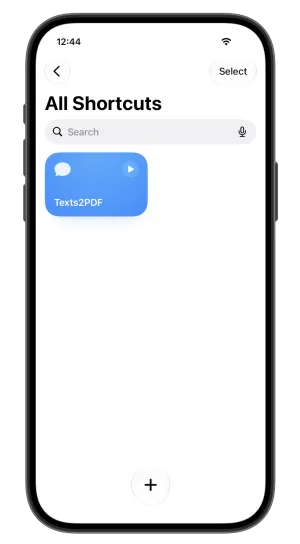
Tap Texts2PDF 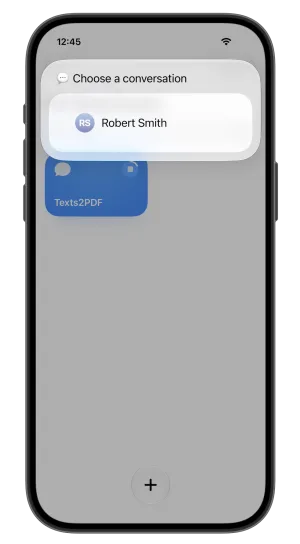
Choose the conversation 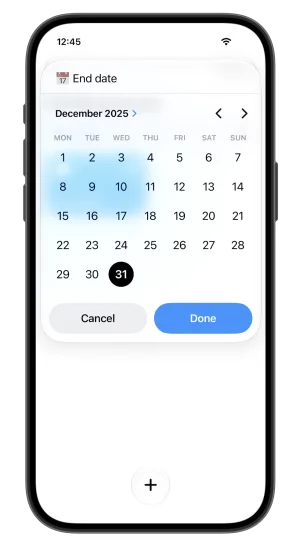
Pick the dates 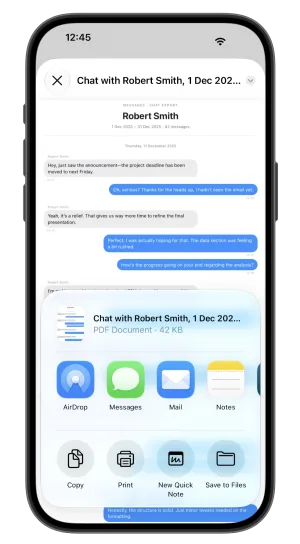
Save or share it
What the PDF includes
- A header with the contact or group name, the date range and the number of messages.
- A heading for every day, so the conversation reads in order.
- The time under every message, and the sender’s name above each message they sent, also in group chats.
- Photos sent in the conversation. Videos and other attachments are not included.
To export the whole conversation, pick a start date before the first message. For a dispute or a court case, pick just the period that matters. Texts2PDF only exports Apple’s Messages app; for WhatsApp, Messenger, Instagram, Signal and Telegram, use our app TextKeep.
Export text messages from an iPhone to a PC or Mac
Make the PDF on your iPhone first, then move the file:
- To a Mac: tap the share button on the PDF and choose AirDrop, or save it to iCloud Drive and open it in Finder.
- To a Windows PC: email it to yourself, or save it to iCloud Drive and download it from iCloud.com. If you use OneDrive or Google Drive, they appear in the Files app too.
There’s no need to back up your iPhone or connect a cable, and the PDF opens on any computer.
Other ways to export text messages
Screenshots are free and fine for a few messages, but the Messages app shows the time of each message only while you swipe left on the conversation and hold, and long threads turn into dozens of images.
Messages on a Mac can print a conversation to PDF if you use Messages in iCloud: open the conversation, scroll up until the oldest message you need has loaded, choose File, then Print, and pick Save as PDF. Times only appear where Messages shows them on screen.
Desktop programs that read an iPhone backup work on Windows and Mac, but they need a cable, a full backup of your phone and usually a paid license.
| Texts2PDF | Screenshots | Mac | Backup programs | |
|---|---|---|---|---|
| Needs a computer | No | No | Yes, a Mac | Yes, and a cable |
| Date and time on every message | Yes | No | No | Usually |
| Whole conversation in one file | Yes | No | After scrolling | Yes |
| Messages stay on your phone | Yes | Yes | Synced to iCloud | Copied to the computer |
| Cost | $9.99 once | Free | Free | Usually paid |
Need it on paper? Our guide on how to print text messages from an iPhone covers printing, and the one on text messages for court covers what lawyers usually ask for.
Questions
Can I export text messages from my iPhone for free?
You can take screenshots, or print the conversation to PDF from Messages on a Mac. Both are free, but screenshots miss most dates and times, and the Mac needs Messages in iCloud. Texts2PDF costs $9.99 once and exports the whole conversation with every date and time.
Can I export an entire conversation at once?
Yes. Pick a start date before the first message and today as the end date, and every message in the conversation goes into one PDF.
Does it export iMessages, group chats and photos?
Yes. iMessages and SMS texts are both in the Messages app, and group chats work the same way, with the sender’s name above each message. Photos are included in the PDF. Videos and other attachments are not.
How do I get the PDF onto my computer?
From the share button on the PDF, AirDrop it to a Mac, email it to yourself, or save it to iCloud Drive and download it from iCloud.com on a Windows PC.
Are my messages uploaded anywhere?
No. The PDF is made on your iPhone. Nothing is sent to us or to anyone else unless you share the PDF yourself.
Export the whole conversation in about a minute
Texts2PDF saves any Messages conversation from your iPhone as one PDF, with every date, time and sender. One payment of $9.99, and nothing leaves your phone.
Texts2PDF
A mini-app shortcut that exports a Messages conversation from your iPhone to one PDF, with the date, time and sender on every message. Nothing is uploaded.
Watch the demo