How to print text messages from your iPhone
There’s no Print button in the Messages app, so getting a conversation onto paper takes a workaround. Here are the three that work, starting with the quickest.
The short answer
Export the conversation as a PDF with the Texts2PDF mini-app shortcut, then open the PDF, tap the share button and choose Print. Every message keeps its date, time and sender, and you don’t need screenshots or a computer.
Jump to a method:
- Export the conversation as a PDF, then print it
- Take screenshots and print them
- Print from Messages on a Mac
1. Export the conversation as a PDF, then print it
This is the way to go for long conversations, or when the dates matter, for example for a lawyer, a landlord or your own records. Texts2PDF is a mini-app shortcut that runs in Apple’s Shortcuts app and turns a Messages conversation into one PDF, right on your iPhone.
- Buy Texts2PDF and tap Add Shortcut on your install page.
- Open the Shortcuts app and tap Texts2PDF.
- Search for the contact by name or phone number, and choose the conversation.
- Pick a start date and an end date. Only messages from that period go into the PDF.
- When the PDF opens, tap the share button and choose Print. Pick your printer, the number of copies and the pages, then tap Print.
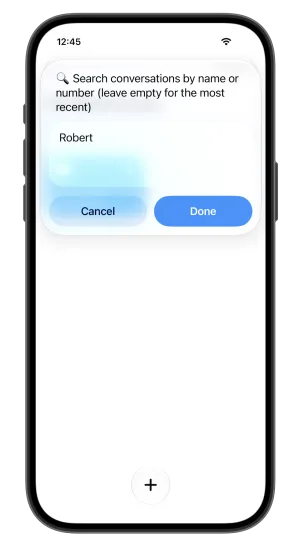
Search for the contact 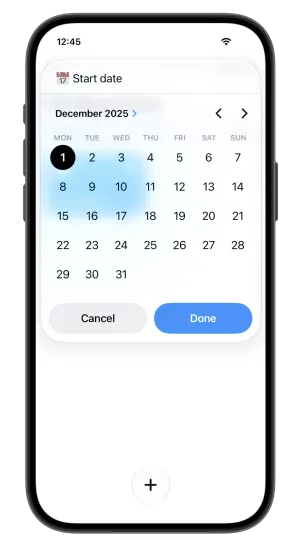
Pick the dates 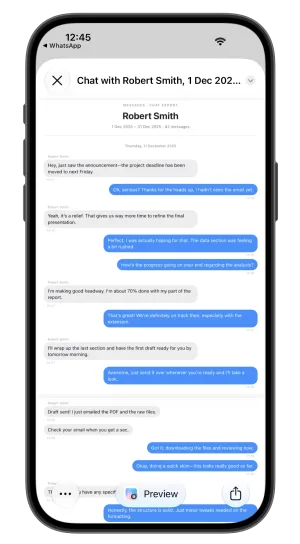
Check the PDF 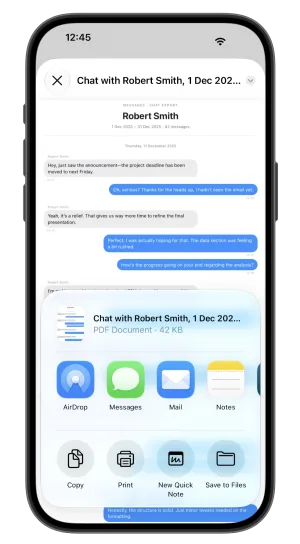
Tap Print
No AirPrint printer at home? Choose Save to Files or Mail instead, and print the PDF from any computer or at a print shop. Only need the file? See how to export text messages from an iPhone.
What you get: every message with its date, time and sender, a conversation of any length in one file, and nothing uploaded, for a single payment of $9.99. Texts2PDF works with Apple’s Messages app. For WhatsApp and other chat apps, use our app TextKeep.
2. Take screenshots and print them
This is free and built into every iPhone, and fine for a handful of messages.
- Open the conversation in Messages and scroll to the first message you need.
- Press the side button and the volume up button at the same time to take a screenshot.
- Scroll down and repeat until you’ve captured every message you need.
- Open Photos, select the screenshots, tap the share button and choose Print.
The catch is the dates. Messages shows a date only above some messages, and the time of each message only while you swipe left on the conversation and hold. Long threads turn into dozens of images, and it’s easy to skip or repeat a message between screenshots.
3. Print from Messages on a Mac
If you use Messages in iCloud, your conversations also appear in the Messages app on your Mac, where there is a Print command.
- Make sure Messages in iCloud is on, both on your iPhone (in Settings, under your name, then iCloud) and on your Mac (in Messages, Settings, iMessage).
- Open Messages on your Mac and select the conversation.
- Scroll up until the oldest message you need has loaded.
- Choose File, then Print. To keep a PDF instead, open the PDF menu in the print window and choose Save as PDF.
You need a Mac signed in to the same Apple Account, long threads take a lot of scrolling to load, and the printout shows times only where Messages shows them on screen. On a Windows PC there’s no built-in way. Desktop programs that read an iPhone backup can do it, but they need a cable, a full backup and usually a paid license.
Which way should you choose?
| PDF with Texts2PDF | Screenshots | Mac | |
|---|---|---|---|
| Needs a computer | No | No | Yes, a Mac |
| Date and time on every message | Yes | No | No |
| Sender named on messages | Yes | Only in group chats | Only in group chats |
| Long conversations | One file, any length | Dozens of images | Scroll to load first |
| Cost | $9.99 once | Free | Free |
Printing text messages for court
For a lawyer or a court case, completeness and dates matter more than looks: print the whole conversation for the period in question, keep the originals on your phone, and don’t edit the copies. Our guide on how to print text messages for court goes through it step by step.
Questions
Can I print text messages from my iPhone for free?
Yes. You can take screenshots of the conversation and print them from the Photos app, or print the conversation from Messages on a Mac. Both are free, but screenshots miss most dates and times, and the Mac needs Messages in iCloud. Texts2PDF costs $9.99 once and gives you every message with its date and time.
How do I print a whole text conversation?
Export it as a PDF with Texts2PDF. You choose the conversation and the dates, and every message in that period goes into one PDF, which you can print from the share button. With screenshots you have to scroll and capture the conversation one screen at a time.
How do I print text messages with the date and time?
Texts2PDF puts the date and time on every message. In the Messages app itself, times only appear while you swipe left on the conversation and hold, which makes them hard to capture in screenshots.
Can I print text messages without a computer?
Yes. Export the conversation as a PDF on your iPhone, tap the share button and choose Print to send it to an AirPrint printer. You can also print screenshots straight from the Photos app.
How do I print iMessages?
iMessages are the blue-bubble conversations in the Messages app, so you print them the same way as text messages. Texts2PDF exports them, and the dates, times and senders come with them.
Print the whole conversation, with every date
Texts2PDF exports any Messages conversation from your iPhone to a PDF in about a minute. One payment of $9.99, nothing uploaded.
Texts2PDF
A mini-app shortcut that exports a Messages conversation from your iPhone to one PDF, with the date, time and sender on every message. Nothing is uploaded.
Watch the demo